
Downloading the BCS
Your download will start automatically…
Locate the Download
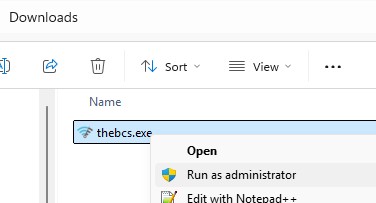
bcs_setup.exe will auto-download to the Downloads folder.
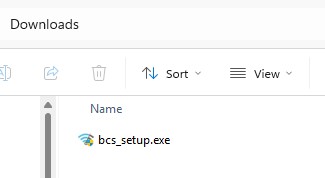
Double-click the executable to run the installer.
Locate the Download
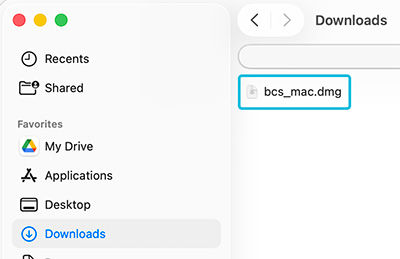
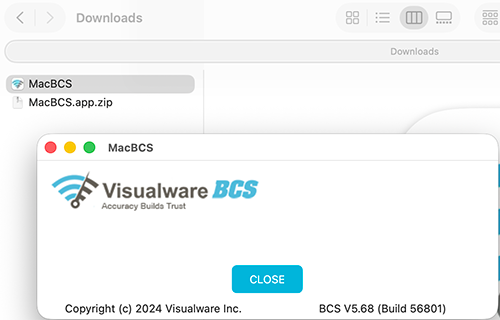
The installation file is downloading to your Downloads folder. Open the Downloads folder in Finder.
Download Started
We couldn't recognize your browser to offer tailored download help.
The download should either start automatically or offer you the chance to save or run the file. Once complete, proceed to installation below.
For more help, visit the support page.
Install on Windows
Click Next on the first page, then accept the license agreement on the second page.
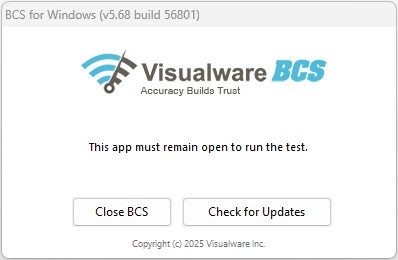
The installer will show an option to install the BCS as a Windows service. If you are running as administrator, this checkbox will be available — check it to have the BCS run automatically in the background.
If the checkbox is greyed out, you are not running as administrator. The installer will place thebcs.exe on your Desktop instead, which you can double-click to run the BCS manually.
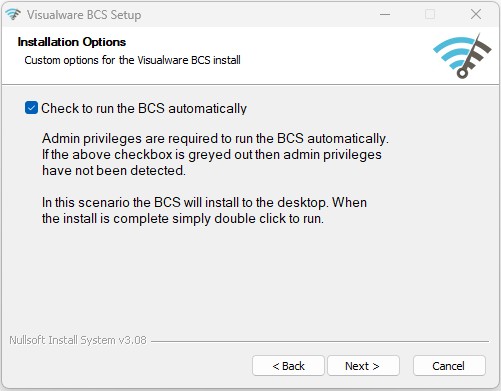
The remaining pages allow you to choose an installation directory. Once the install is complete, close the installer. The BCS is now ready to use.
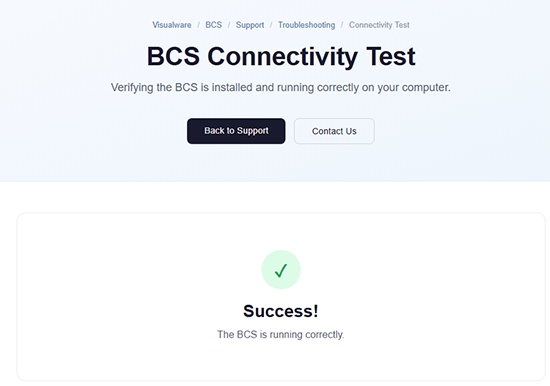
That's it! You should now be able to run a Visualware connection test from any browser at any time.
Install on Mac (Service)
Double-click the DMG file. This should pop up another dialog containing a PKG installer.
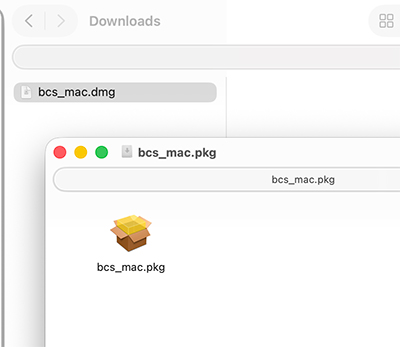
Double-click the PKG file to open the installation wizard. After clicking the Continue button on the first page click the Install button to begin the installation.
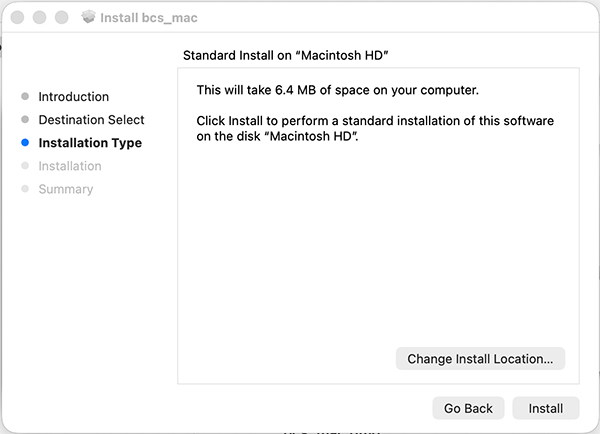
Typically, at this stage, a password will be required. Enter it or use the touchpad to verify biometrics.
Once the installation has completed, click Close.
Download Started
Your Linux download is in progress. For installation help, see the Linux install guide.